Push Notifications
Push Notifications are sent from the admin interface via /admin/push_notification or selecting the push notification option from the side menu.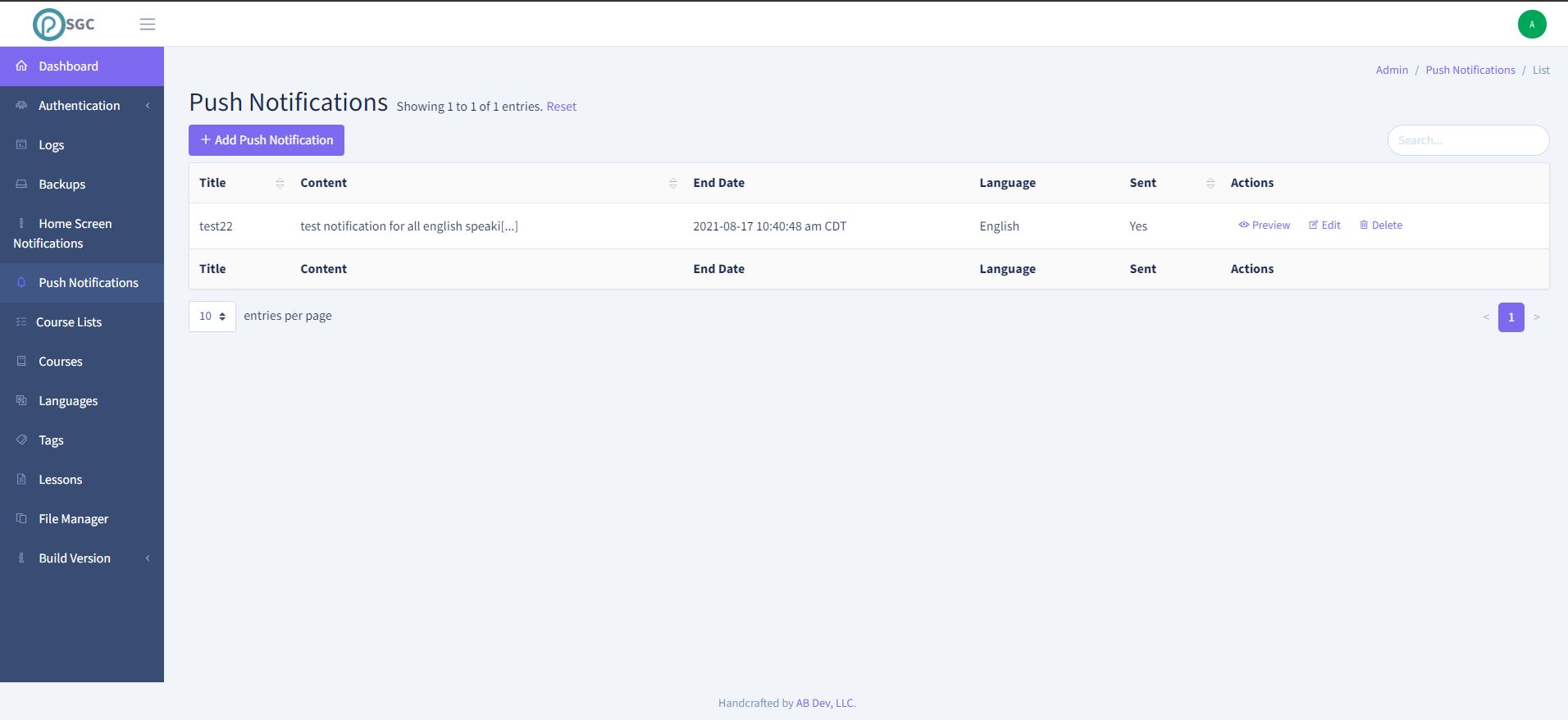
Example Notification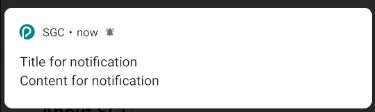
A notification contains:
Title
The title is the header that is displayed in the notification
Refer to the image above for details.
Content
The content is the longest part of the message and will be collapsed automatically if it is too long.
Refer to the image above for details.
Date and Time
This is when you want a notification to be sent out. It can be scheduled anytime in the past or future.
If it is in the past, it will be sent as soon as the next job for sending notifications is run. This job is run every minute and will send any and all notifications that have a send date in the past or equal to the current date time.
Additionally, note that the time is saved based on your local time zone. If you want something sent out at midnight in England, you need to account for the time change accordingly.
If it is not displaying dates and times in your current timezone then you may need to configure your default timezone inside of your profile. Refer to editing your profile for more info.
Target Language Group
This is who will receive the notification created. It is sent out based on language groups. If they have selected English in the mobile app, and you select English, then they will receive the push notification.
Action
Something has to happen when a notification is clicked on.
There are 2 options:
- Internal Link
- External Link
Internal Link
This will be a link to a page inside of the mobile app.
External Link
This will be a link to a page outside of the mobile app.
URL
This is where the user will be directed to when they tap on the push notification. The values it can contain depends on whether you have selected an internal or external link
If you selected Internal Link then the notification will open to a page inside of the mobile app.
By default the value should be set to /tabs/home. That means that when you tab on the notification it will open the mobile app and take you to the main page.
If you would like to do other more complex things such as navigating to a specific course etc then please contact me (andrew@andrewblankenship.dev) for more info.
If you selected External Link then this can be any fully qualified domain name such as https://shepherdsglobal.org OR it can be a href link such as mailto:info@shepherdsglobal.org. The first will open an external web browser to the url and the latter will open their email client to send an email to that address.
Test Notifications
It is HIGHLY advisable that you test all notifications prior to scheduling them for entire groups of people. To do this is really quite simple.
Take note of the big blue button at the bottom prompting you to enter a FCM Id to send a notification to a single device. This is called a Firebase Cloud Messaging ID or FCM ID for short.
You can only get these from the device themselves so lets go through the process of sending a test notification.
- In the mobile app navigate to the profile screen
- Tap “About the SGC Mobile App”
- Tap 5 times on the AB Dev Logo - you may need to tap a few extra times since it is really easy to miss tapping on it.

- Select and copy the really long string. This is your FCM ID. You may need to tap on select all a couple of times because it has characters in the string like “-” and “+” which makes it appear as though it may be more than one word.
- Send this to yourself so you can have it on the same web browser that you are scheduling the notification.
- Copy the string into the text field above the big blue button.
- Fill out the rest of the data in the field above.
Note: Date/Time and Language do not matter since we are sending it immediately and only to the test device - Click the blue button and you should see the notification on your mobile device.
- If you don’t see a notification, then verify that you did copy the entire string correctly from your mobile device.
- Click on the notification to make sure that it behaves the way that you think it should. If it doesn’t, then try again or contact us (andrew@andrewblankenship.dev) for help.