In App Content
Where does it all come from?
It can be difficult to keep track of where everything in the mobile app comes from. This page will show you exactly where the different content is displayed from and how to edit it.
Home Screen Notifications
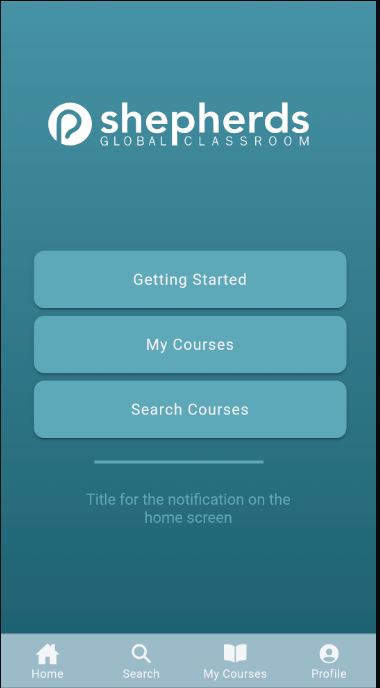
Home Screen Notifications are modified on the Home Screen Notification Page. More info here
Categories
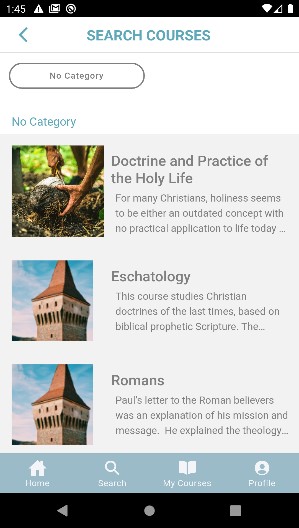
By setting the tags on courses, you can set the categories that will display on the search courses screen.
These are set under the course wizard Part 1 - Course Creation or editing the course after creation in the “Course Tags” box on the “Course Overview” tab. To edit a course navigate here and then select edit next to the course
Course Images
There are images displayed to identify the course. Some of these are square icons and others are wide banner images.Both of these images are set from the course edit page or the first page of the course creation page under “Image - Square” or “Image Wide”
Square
This image is used to display on the “Cards” for the course such as on the “Search” page and on the “My Courses” page. Note the images in the picture above.
Wide
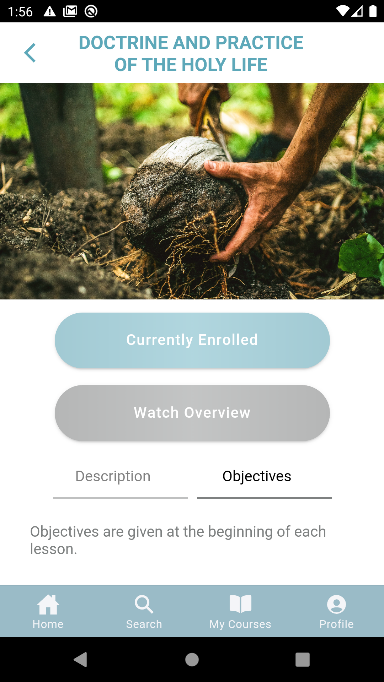
This image is displayed as a header on the class overview page accessed via search. Note the images in the picture below
Author Images
These can be added when the author is created via the add button above the author selection on the course wizard. Simply upload a 200 px x 200 px png or jpg and it will be displayed when that users is marked as an author for the course
Lesson Information
The Description, Appendix, Bibliography, Lessons, etc is all set via the course wizard upon creation or editing the course after creation.